
Agency work, at hand $0 with any com1 account
Two companions to com1, for the parts that are better a tap or a keystroke away than a browser tab away. On the iPhone, on the App Store now: your unfiled mail as a deck to swipe through, the morning briefing, search, a call note and a quick ticket. On the Mac, coming soon: record the screen onto a ticket, search every team, get the banner.
Download on the App Store — free with a com1 account · iPhone, iOS 18 or later
com1 for Mac — coming soon to the Mac App Store
com1 for iPhone on the App Store
The parts of com1 that are better a tap away than a laptop away: your unfiled mail as a deck to swipe through, the morning briefing, search, a call note and a quick ticket, and pushes that keep to the hours you set.
Download on the App Store — free with a com1 account · iPhone, iOS 18 or later
Your unfiled mail, one swipe at a time
Everything com1 synced that nobody has filed yet, as a deck of cards in three passes: Delete, Ignore, File. Swipe a card down to do what the pass says, up to keep it for the next pass. What you file lands on the client, project or ticket in com1, for the whole team.
-
01
The deck
One email at a time: the sender, the subject, the first lines and what came attached, with the three passes and their counts above it.
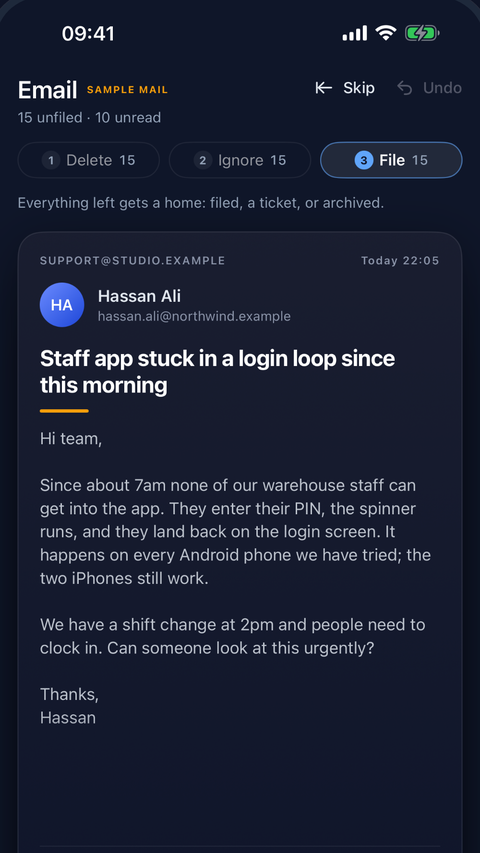
Fig. 1 — the File pass -
02
Junk first, then the rest
The Delete pass clears what nobody needs, Ignore keeps routine mail on record without acting on it, and File is for everything left.
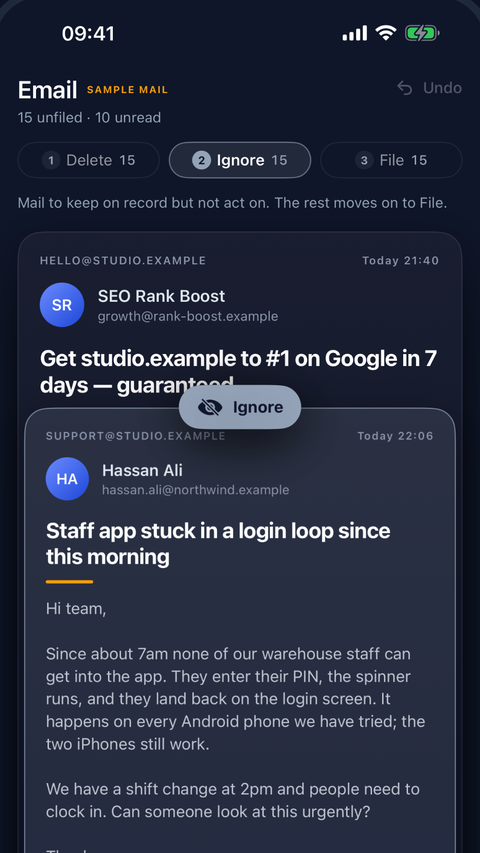
Fig. 2 — mid-swipe in the Ignore pass -
03
Every email gets a home
File it to a contact, a company, a project or a ticket, or raise a ticket from it; the places it probably belongs are listed first.
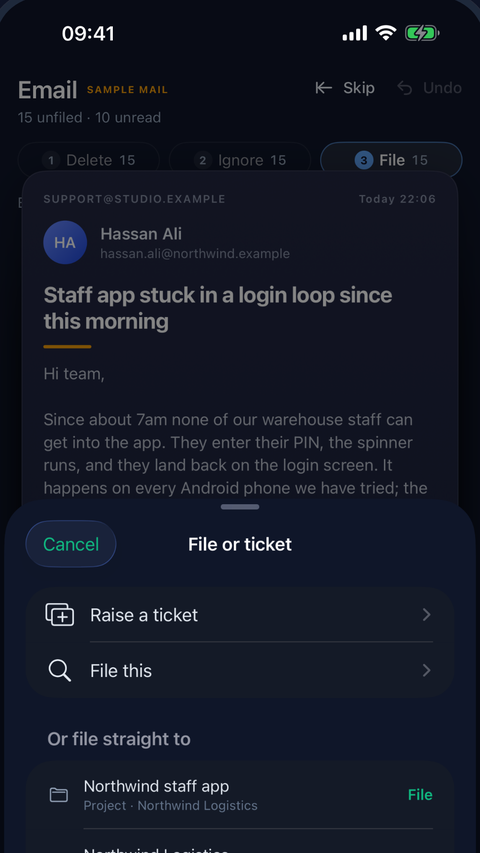
Fig. 3 — the File or ticket sheet -
04
The whole letter, when you need it
Open the card for the full message, its headers and its attachments, and decide from there.
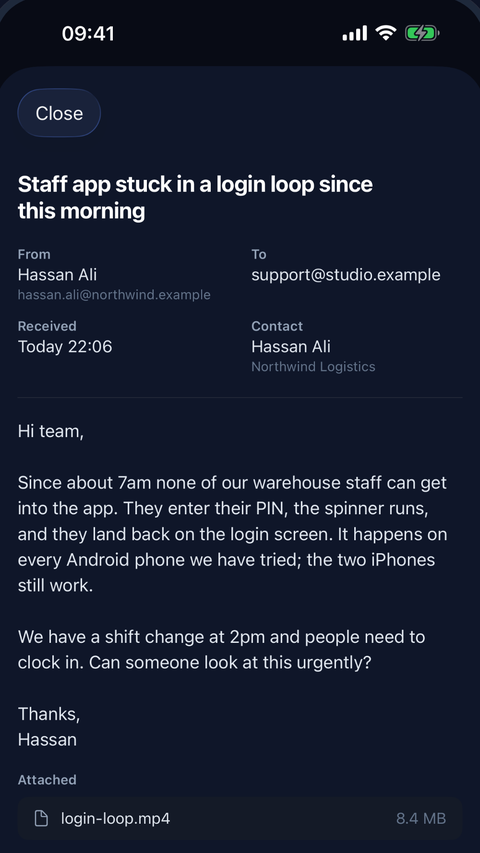
Fig. 4 — a message open - 05 Shake to undo A swipe you regret comes back with a shake.
What needs you today, before the laptop is open
The Dashboard tab shows billable hours against this month's target and the open work; the Briefing tab is the morning briefing, the same one that reaches your inbox.
- 01 Hours against the target Billable hours this month next to the prorated target, the figure the web's dashboard shows.
- 02 The morning briefing What is overdue, due today and waiting for review, once a day.
A ticket from any tab, before the thought is gone
A ticket button and a pencil at the top right of every tab, and search as a tab of its own: the three things the phone is for when you are away from the desk.
- 01 A quick ticket Pick a project, give it a title and a line; it is filed with the project's own defaults and on the board before you hang up.
- 02 A call note Title, notes, caller, project; save, and it is on the contact's timeline.
- 03 Search Tickets, projects, deals and contacts across your team, the same results as the web's ⌘K.
- 04 Your teams A picker switches the team, and every tab follows.
Assignments, mentions and due dates, within the hours you set
Which events reach you is set on your com1 account, the same on every device; which teams may interrupt this phone is set in the app. Pushes are optional, and the app works fully without them.
- 01 Per team Switch a team off and its pushes stop.
- 02 Hours, not all hours From and until, in your own time zone. A push held back by the hours is dropped, not delayed: the same news is waiting in the app.
Record the meeting, add it to the ticket coming next
The next release puts a record button at the top of every tab. Put the phone on the table and it records the room with its microphone, with the screen locked. Afterwards, add the recording to a ticket, on its Recordings card, as a comment or in the description, and whoever can see the ticket can listen.
-
01
The recorder
One large button, a clock and a level meter; lock the phone and it keeps going.
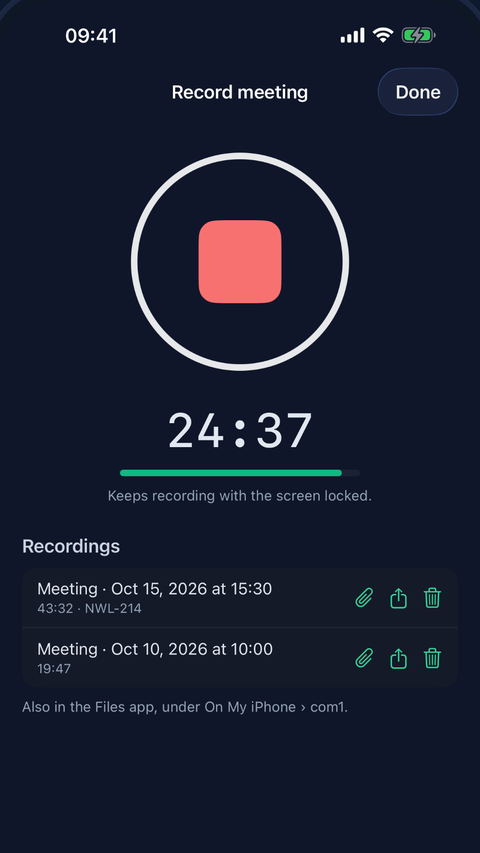
Fig. 5 — the recorder, coming next - 02 Consent first The record button stays off until you tick that everyone present has agreed, every time.
- 03 Yours either way Recordings stay on the phone too, in the Files app under On My iPhone › com1; only one added to a ticket is uploaded.
Sign-in only, nothing to buy
The app needs a com1 account and does nothing on its own. The account can be closed from the phone, under Settings.
- 01 No analytics, no tracking What the app sends to com1 and what stays on your phone is spelled out in its privacy policy ; crash reports, in App Store builds only, carry no personal data.
- 02 Your own server, if you run one An on-premise installation points the app at its own address in Settings.
- 03 Questions answered Passes, pushes, teams, the server: the support page covers the ones people ask, and has a form for the rest.
com1 for Mac coming soon
The parts of com1 that are better a keystroke away than a browser tab away: record the screen onto a ticket, search every team, write a call note, get the banner. No Dock icon, no window to keep open. Coming to the Mac App Store.
Coming soon to the Mac App Store — free with a com1 account · macOS 15 or later
Record the screen, attach it to the ticket ⌘⇧R
Pick a window, an app or a display and the recording starts; stop with the same shortcut. The video is transcoded on your Mac and uploaded to your team's storage, then attached to a ticket, posted as a comment or added to the description. Whoever can see the ticket can play it.
-
01
The menu, from anywhere
No Dock icon, no window to keep open: click the com1 mark or press the shortcut in whatever you are doing.

Fig. 6 — the menu -
02
Review before it uploads
A title, the ticket it belongs to, and whether it becomes an attachment, a comment or part of the description.

Fig. 7 — the recording, ready to upload - 03 Microphone and system audio, when you want them Two toggles, remembered for next time; macOS asks for the microphone once and it is never touched while off.
- 04 Browser-ready before it leaves the Mac 1080p H.264 MP4 with a poster frame, roughly 300 MB for ten minutes; it counts toward your team's storage like any attachment.
- 05 A video block in the editor A recording on a ticket can be placed again later, in the description or a comment, from the editor's block menu.
- 06 No Loom account, no sharing settings The video lives with the ticket under the same permissions; Loom links still work too.
A ticket number from memory resolves straight to the ticket ⌘⇧K
Tickets, projects, notes, deals, contacts and products across your team, the same results as the web's ⌘K, from any app. Enter opens it in the browser, already signed in.
-
01
The palette
Type a key, a name or a word; the first result is the one you meant.

Fig. 8 — the search palette -
02
Type @ to switch teams
The same palette lists your teams; arrow down, Enter, and you are searching the next one.

Fig. 9 — the team switcher - 03 Only what you may read Results are filtered by your project memberships, the way they are on the web.
The phone rings. One shortcut, and you are writing. ⌘⇧J
A title, a plain-text body and optional links to the caller and a project, while you still remember who it was. It lands in com1 as a call note, next to everything else about them.
-
01
The note
Title, notes, caller, project; save, and it is on the contact's timeline.

Fig. 10 — a call note - 02 The timeline A call logged against a contact refreshes their last interaction.
Assignments, mentions and due dates, as they happen
Banners on your Mac while you work in anything else. Which events reach you is set on your com1 account, the same on every device; which teams may interrupt this Mac is set in the app.
-
01
The banner
A ticket assigned to you, a mention, a due date, as a macOS notification.

Fig. 11 — a banner - 02 The morning briefing What is overdue, due today and waiting for review, once a day.
Sandboxed, sign-in only, nothing to buy
The app needs a com1 account and does nothing on its own. It runs in Apple's App Sandbox with outgoing network access and, only if you allow it, the microphone.
- 01 No analytics, no tracking What the app sends to com1 and what stays on your Mac is spelled out in its privacy policy ; crash reports, in App Store builds only, carry no personal data.
- 02 Your own server, if you run one An on-premise installation points the app at its own address in Settings; the setting belongs to the Mac and survives signing out.
- 03 Questions answered Shortcuts, permissions, storage, teams: the support page covers the ones people ask, and has a form for the rest.
Put com1 in your pocket
Free for every com1 account. Requires an iPhone with iOS 18 or later; the Mac app follows on the Mac App Store.